Burning Bridges AI: How to Make the Viral Video Trend
How the Burning Bridges AI trend works under the hood. Pick a lead and supporting cast, prepare clear photos, and drive Seedance 2.5 with the party scene as a reference video. Or skip the setup and make it in one click.
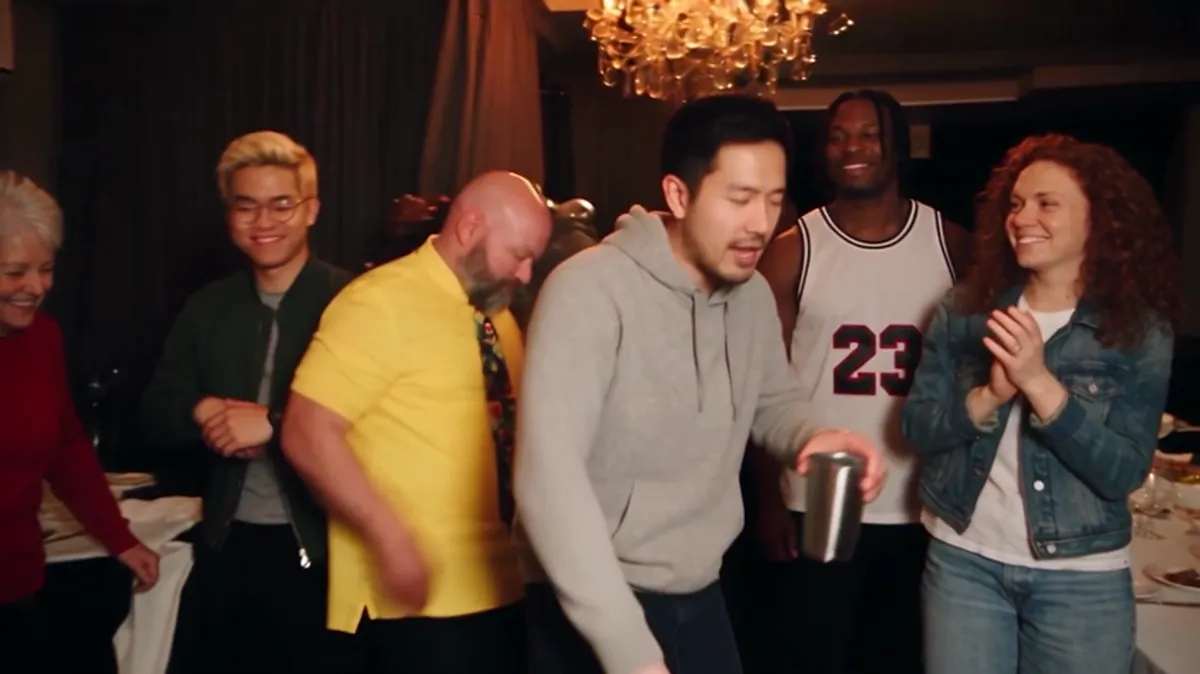
To make the Burning Bridges AI trend video, you need three things: the party scene from Drake's Burning Bridges music video as a reference clip, one clear photo for each person you want in it, and a video model that can follow a reference video, such as Seedance 2.5. The reference clip supplies the moves and the camera, the photos supply the faces and outfits, and a prompt ties them together. You can wire that up yourself, or upload one photo to Burning Bridges AI and get the same result without the setup.
This guide walks through the do-it-yourself route first, step by step, so you can see how the trend works. The one-click route is at the end.
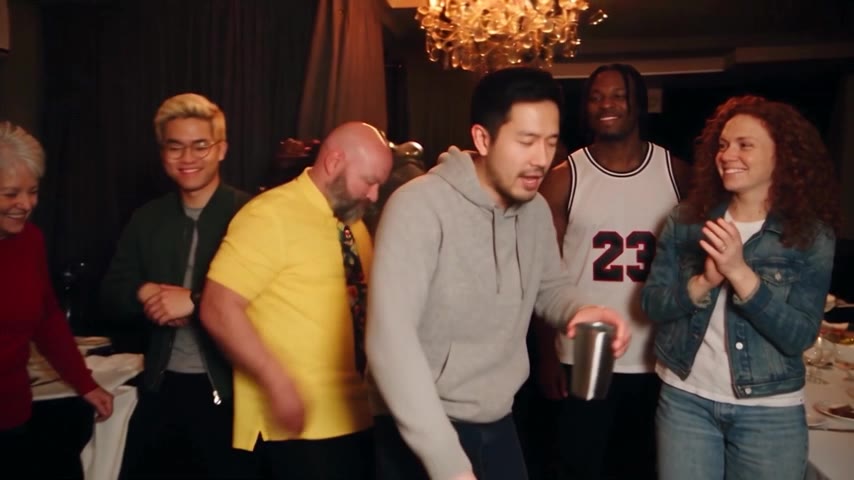
Our test: one lead and five friends, each from a single phone-style photo. All five showed up in the crowd. Every person here is AI-generated.
How does the Burning Bridges AI trend work?
Every version of the trend is the same 15 to 29 seconds of footage with new people in it. The lead walks into a dark room lit by crystal chandeliers, plays to a handheld camera in a close-up, raises a silver cup, puts a hand on the collar and turns to a crowd that leans in.
AI video models that accept a reference video can copy that motion and swap the people. You give the model:
- A reference video: the party scene. It decides the moves, the timing and the camera.
- Reference images: one photo per person. They decide who appears.
- A prompt: which photo is the lead, which photos join the crowd, and what must stay the same.
Get any one of these wrong and the result drifts. The steps below follow that order.
Step 1: Cast the video
Decide who plays which part before you collect anything.
- The lead: one person who takes the walk-in, the close-up and the cup. This is the face viewers remember.
- The supporting cast: up to five people who replace faces in the crowd behind the lead. Optional.
Pick the lead with contrast in mind. The joke lands when the person clearly does not belong at that party: a coworker on their last day, a friend on their birthday, or you.
Step 2: Prepare one clear photo per person
The photos decide whether a person shows up at all. We tested this on the same reference clip and the same prompt. With three group shots and one side view among five friend photos, none of those four people appeared. With five single, front-facing phone photos, all five appeared.
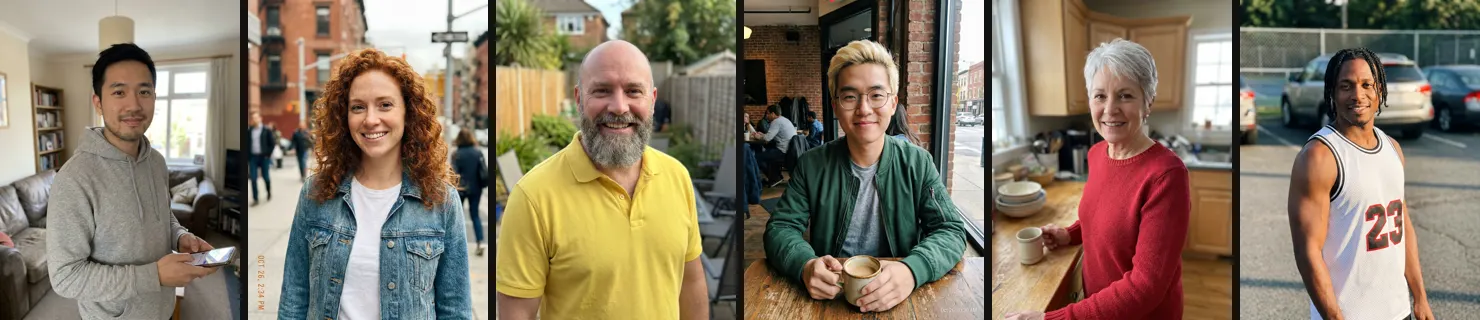
The six photos behind the video above: one lead and five friends, one person per photo, facing the camera.
| Works | Does not work |
|---|---|
| One person in the photo | Group shots, even with your friend in the middle |
| Facing the camera | Side views and turned heads |
| Head to waist in the frame | Far-away shots where the face is tiny |
| Plain light, no filter | Sunglasses, heavy filters, dark rooms |
Blurry strangers far in the background are fine. Two of our five friend photos had them, and both friends still came through.
Step 3: Get a clean reference clip
The reference is the party scene, cut to the length you want: about 15 seconds for the best-known part, or about 29 seconds for the whole scene. Keep it landscape 16:9 like the original.
This is where most people get stuck. Models such as Seedance check the input for real people, and the original music video is full of them, so the model can reject the clip outright. In our first test, a direct edit of the original footage failed the content check. The workaround is a template version of the scene with no real people in it: same room, same camera path, same moves, performed by AI characters. Building one takes several generations and a lot of checking frame by frame.
Step 4: Generate with Seedance 2.5
Seedance 2.5 handles this job better than earlier versions for two reasons. It accepts a reference video of about 30 seconds, so it covers the full 29-second scene in one pass, and it keeps several reference images apart, so each friend stays a separate person. Use these settings:
- Reference video: your clean template
- Reference images: the lead photo first, then the friends in the order you want them from left to right
- Aspect ratio: follow the reference (adaptive)
- Duration: follow the reference
- Resolution: 480p for phones, 720p for big screens
The prompt has three jobs, and we learned each one by watching it fail:
- Lock the lead to the original moves. Ask for the same lip movements frame by frame, the same gestures and the same timing. When we dropped that line, the mouth drifted off the beat. When we asked for laughter, the model stopped following the reference.
- Bring the friends in as performers in the crowd. Say that each image after the lead is a separate person behind the lead, arranged left to right in upload order. A prompt that only said the friends "stay in the crowd" and that everyone else stays unchanged kept the original crowd, and zero friends appeared.
- Keep every identity stable. Ask that each person keeps the same face and outfit when they turn away, get blocked or come back into view, and that nobody is duplicated or swapped.
Step 5: Check the result and retry
Generation took 5 to 11 minutes per video in our tests. Before you accept a result, scrub through three moments:
- Around second 2: the close-up, where likeness shows most
- Around second 9.6: the hand on the collar, which should land in every version
- The crowd shots: each friend should stay the same person
If something is off, change one thing (a photo, a line in the prompt) and generate again. Each retry is a paid generation.
Step 6: Add the sound and post
The video comes out silent. Add the Burning Bridges sound from the TikTok or Instagram music library when you post, which also puts your video on the trend's sound page. The full steps are in How to add the Burning Bridges sound.
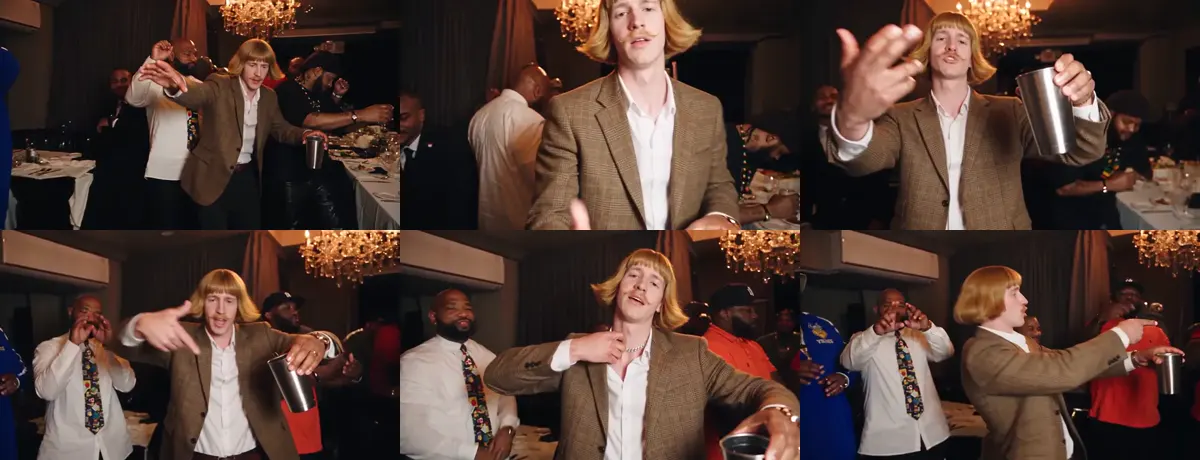
The six beats of the 15-second cut. Use them to line up the sound.
Label the video as AI when the app offers it. TikTok and Meta both ask creators to label realistic AI content.
Or skip steps 3 to 5 with Burning Bridges AI
Steps 3 to 5 are the hard part: building a clean template, getting the prompt right and paying for retries. Burning Bridges AI has already done them. The template is built, the prompt is tested, and the model settings are fixed. You do the parts only you can do:
- Upload one photo of the lead
- Add up to five friend photos if you want them (More options)
- Pick 15 or 29 seconds and press Generate
The video is ready in about 10 minutes, the preview plays with the original sound, and failed generations give the credits back. Packs start at $9.99 for 100 credits, enough for one 15-second video.
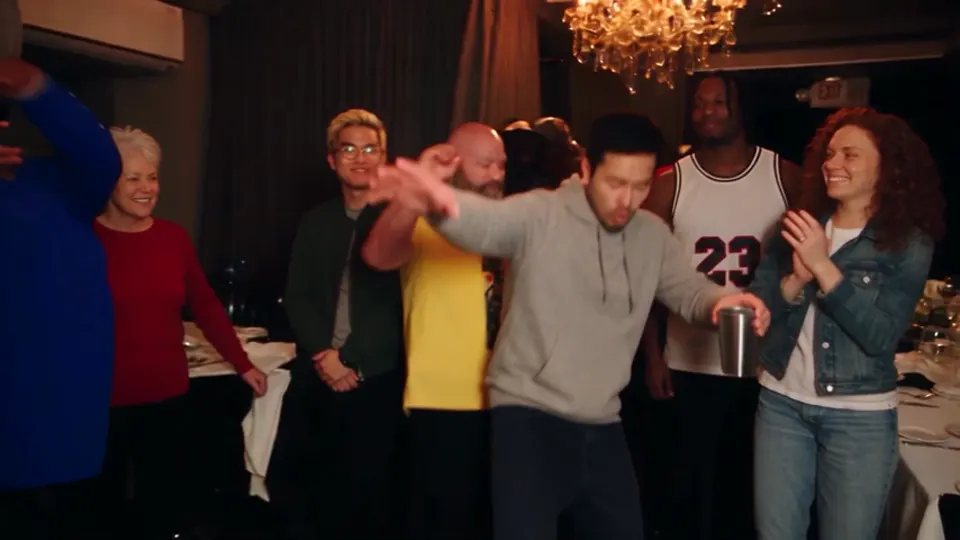
The opening shot of the five-friends video, made this way.
Do it yourself or one click?
| Do it yourself | Burning Bridges AI | |
|---|---|---|
| Reference clip | Build a clean template without real people | Ready |
| Prompt | Write it and fix it by trial | Tested and fixed |
| Model setup | API account, settings, uploads | None |
| Friends and new rooms | Possible, with careful prompting | Built in |
| Failed generations | You pay for them | Credits returned |
| Best for | Learning how it works, custom ideas | Posting the trend tonight |
When is each route a poor fit?
- Do it yourself is a poor fit if you want the video today. The template alone takes the most time.
- Burning Bridges AI is a poor fit if you want different moves, a vertical 9:16 crop or a celebrity's face. It keeps the original scene, outputs 16:9 and only accepts people who agreed.
- Both are a poor fit if you only have group photos of your friends. Ask each friend for a single photo first.
FAQ
Which AI model makes the Burning Bridges trend? Models that accept a reference video, such as Seedance 2.5, can copy the moves and camera of the party scene and swap the people. Burning Bridges AI runs on Seedance 2.5.
Why don't my friends show up in the crowd? Usually the photo. Group shots, side views and far-away photos give the model no clear face to use. Use one person per photo, facing the camera.
Can I use the original music video as the reference? Models often reject it because it contains real people. A template version of the scene with AI characters avoids that.
How long does it take? About 5 to 11 minutes per generation in our tests.
If you only remember one thing
The reference clip decides the moves, the photos decide the people, so give the model one clear, front-facing photo per person.
Want to skip the setup? Make your Burning Bridges AI video.
References
- Burning Bridges (Drake song), Wikipedia
- Songfacts: Burning Bridges by Drake
- BytePlus: Seedance 2.5 API announcement
- TikTok Newsroom: New labels for disclosing AI-generated content
- Meta: Labeling AI-generated images on Facebook, Instagram and Threads
- YouTube Help: Get started creating YouTube Shorts
- Burning Bridges AI terms of service